





Online photo printing resolution guide: best sizes & DPI explained
Time to lock in! This is the only photo printing guide you’ll ever need to get the sharpest, clearest photos from your camera roll.
We’re talking PPI, DPI, megapixels…all the technical terms, but simpler than ever to understand.
So, let’s start with the basics and go from there.
What is print resolution?
Put simply, print resolution tells you how clear and sharp your image is. It’s measured in dots per inch (DPI).
Online photo printing jargon explained: PPI, DPI & megapixels
To find out whether your photo’s good enough to print, you’ll need to get familiar with a few terms.
Don’t worry, we don’t expect you to become an expert! Just understanding the general meaning of these terms will help you massively with printing high-quality photos.
PPI (pixels per inch)
PPI measures the density of your image. In other words, it tells you how many pixels fit into one inch of the image.
The more pixels packed into one inch of space, the higher the PPI, and the sharper the image. On the other hand, fewer and larger pixels (low PPI) causes blurriness and fuzziness in your photos.
DPI (dots per inch)
DPI measures printer output density. But…what on earth does that actually mean?
While PPI measures pixels, DPI measures the number of ink droplets or dots produced per inch by a printer. It’s another way to measure the quality of your photos and make sure you’re getting the crispest images possible!
Generally, you’ll want to avoid anything under 150 DPI when printing your photos, while 300 DPI and above is ideal.
Note: You may see DPI and PPI used interchangeably, but they describe different things.
Megapixels (MP)
You can look at megapixels to find out the total resolution of your photo. One megapixel is made up of one million pixels.
Aspect ratio
The aspect ratio of your photo is simply the ratio of width to height, helping you understand the shape of your image.
Print quality vs screen quality: don’t let your screen fool you
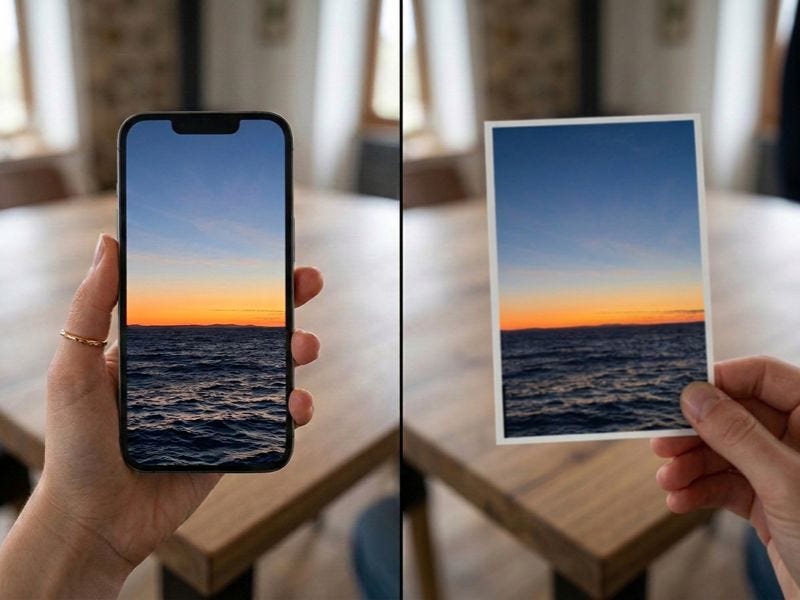
Before we dive into the specifics of high-quality photo printing, let’s just clear something up: the image you see on your screen isn’t an accurate representation of what your photo print will look like. But why?!
Well, firstly, your phone (or laptop) is backlit. So, perfect for doomscrolling late at night, but not so good when it comes to checking the quality of your photos.
The bright display covers up flaws, making your photos seem higher quality than they truly are. Your phone is also great at managing small issues before you’ve even captured your photo, so things like shadows and unfocused areas are dealt with swiftly. When the photo’s printed, these hidden flaws are suddenly much more visible.
Finally, it’s much harder for a photo to retain its quality when it’s printed onto a larger surface, compared to existing on a small phone.
What does good resolution look like?
For the clearest, sharpest photos, aim for 300 DPI.
Sometimes, you can get away with a lower DPI. For example, wall photos aren’t up-close-and-personal, so a DPI below 30 may work. However, if you’re printing photos for photo albums, photo books, or anything else you’ll be viewing up-close, always stick to 300 DPI.
Which resolution for which print size?
Here’s a handy guide on the best resolution for each print size.
Looking to resize your image? Check out our expert guide!
|
|
||
| 6x4" prints | 1800 x 1200 px | ||
| 7x5" prints | 2100 x 1500 px | ||
| 8x6" prints | 2400 x 1800 px | ||
| 10x8" prints | 3000 x 2400 px |
If your photo print size is missing from our table, we’ve still got you covered! It’s really quite simple to calculate the best resolution:
Step 1: width in inches x 300 = required pixel width
Step 2: height in inches x 300 = required pixel height
How to avoid blurry prints
Before we tackle the specifics of the best photo resolution for printing photos, there are a few things to be wary of. If you avoid the following, you’ll get sharper images from the get-go!
1: Avoid cropping
When you crop your photos, there’s a serious knock-on effect. The number of pixels drops, and this means the remaining pixels have to stretch to fill the space. Of course, you don’t see this process happening, but what you do see is a blurrier photo, and no one wants that!
2: Avoid photos from messaging apps
Messaging apps, such as WhatsApp, are nightmare fuel for photo printing. These apps compress and resize photos significantly, mainly to save storage and speed up messaging. So, good for your daily chats maybe, but terrible for your photo prints.
3: Avoid screenshotting social media posts
When you screenshot a photo on social media, as well as the deceiving backlight (which we mentioned earlier), the screen resolution is never going to be as good as it is when you take a photo with your camera app.
What’s the best way to improve the quality of a photo?
Forget what you’ve been told, absolutely no technical skills are needed to improve the quality of your photo. All can be improved with the click of a button!
That’s right, we’ve got a Magic Enhance AI-powered editing tool that fixes the quality of your photos, from super resolution to image extension.
You could save a *lot* of time by heading to your closest Max Spielmann, or finding a self-service printing machine near you, and following the simple instructions. It’s a case of uploading your photo, selecting the Magic Enhance button, and watching your image transform before your eyes!
Frequently asked questions about photo printing resolution
How to tell if an image is high resolution?
If you’re on your phone, open the photo you need, tap the photo, then select the “Info” icon at the bottom centre of your screen. This will open up key details about your image, including the pixel dimensions and file info.
For laptop users, it’s slightly different. If you’re using a Mac, either open the image in “Preview” or right-click the photo and select “Get Info”. Next, click “Show Inspector” to see the pixel dimensions.
For Windows PC users, navigate to “Properties” by right-clicking the photo. Then, go to the “Details” tab to see pixel dimensions.
What resolution should a photo be for printing?
The industry standard is 300 DPI.
How to increase image resolution for printing?
Use our AI enhancer to improve your photo resolution without any manual editing! Just go to your closest Max Spielmann store or self-service machine, upload your photos, and select “Magic Enhance”.
How do I print photos at Max Spielmann?
Simply upload your photos to our photo prints page, or to any personalised gift with a customisable photo option, and place you order for collection or delivery!
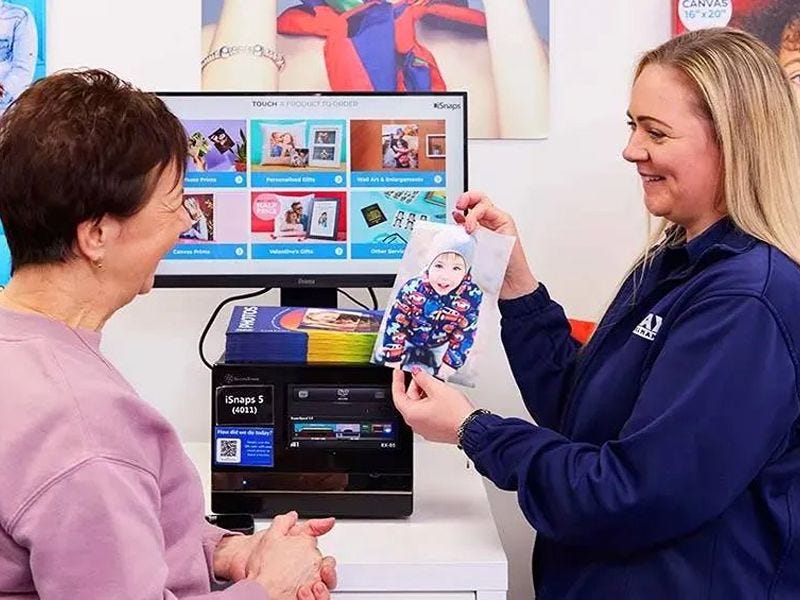
You can also print photos in-store, straight from your phone’s camera roll. Our friendly colleagues would love to help you out.